Remove Video Text and Subtitles for Cleaner Footage
Experience a simple, productive cleanup tool for your videos. FalcoCut keeps your visuals distraction-free and prepares every clip for easy reuse across any platform. You get cleaner footage, faster edits, and a smoother path to publishing polished content.



How to Remove Subtitles, Watermarks, Logos, and Other Unwanted Text from Videos Easily
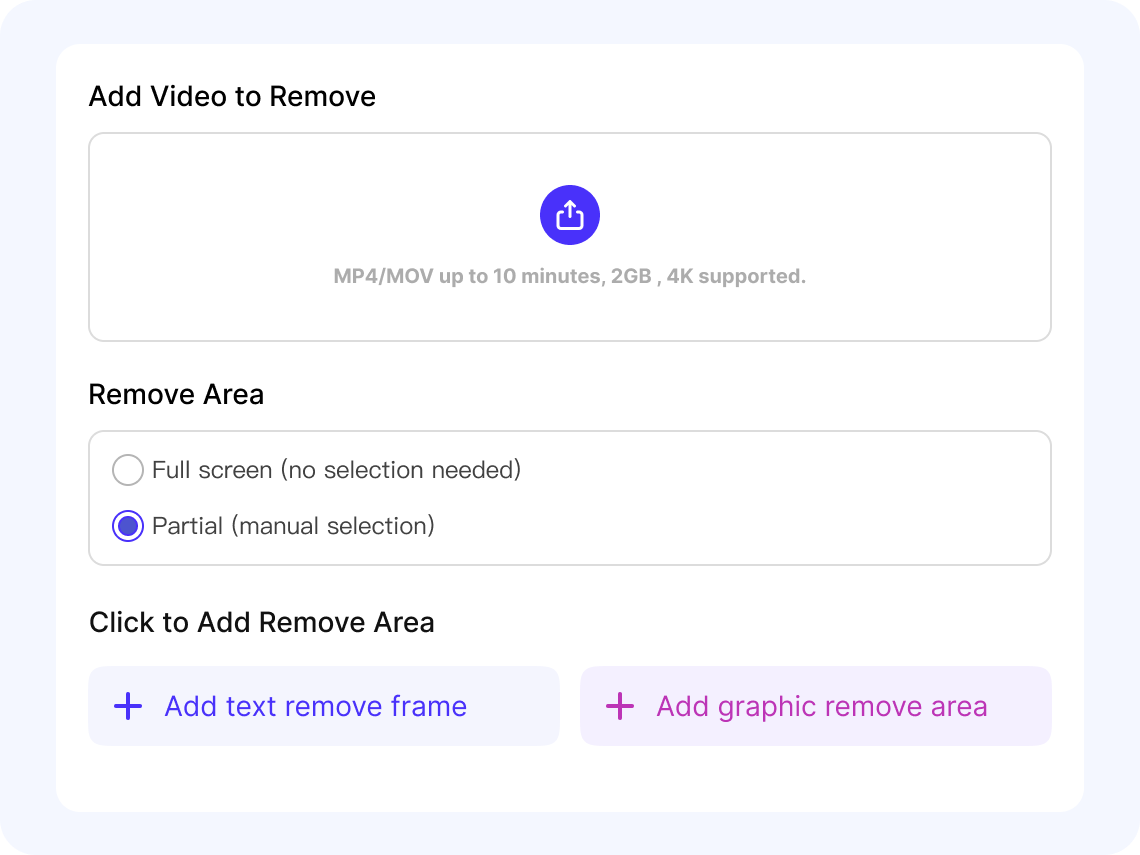
Upload Your Video
Upload the video you want to clean. FalcoCut supports common formats like MP4 and MOV, so you can get started without converting anything.
Mark the Removal Area
Use the selection tool to highlight the area you want to erase. Whether it's subtitles, watermarks, logos, or other unwanted text, ensure the removal box fully covers the area for best results.
Preview the Clean Result
Click Start to let FalcoCut rebuild the pixels behind the text or logo for a smooth, natural finish. Review the preview to ensure all unwanted elements are fully removed.
Export Your Clip
Once everything looks right, export your cleaned video in high quality. Your clip is now ready to share, reuse, or edit further.
Powerful Features for Perfect Video Cleanup
Effortlessly remove subtitles, watermarks, logos, and text from videos with FalcoCut. Whether you're a student, business professional, or social media enthusiast, our online subtitle remover clears distractions and delivers clean, polished results with ease.

Remove Subtitles and Captions Instantly
When videos feel cluttered with text, our subtitle remover gives you a clean starting point that's easier to edit and repurpose. It identifies subtitles and captions across different styles and languages, clearing them from every frame with consistent accuracy. Clean frames make it easier to reuse footage for training, marketing, or multilingual versions without re‑recording anything. Teams can update lessons, product demos, or onboarding materials quickly because the visuals stay uniform across the entire timeline. The result is a polished video that's ready for new subtitles, voiceovers, or platform‑specific edits.

Watermark and Text Removal
Removing watermarks or on‑screen text can slow your work, but our AI text removal tool clears them with sharp, frame‑level accuracy. It handles static, semi‑transparent, and moving overlays without leaving marks or rough edges. With these distractions gone, teams can update product videos, refresh campaign assets, or prepare clips for new platforms with less effort. Your edited video can now carry fresh visuals, clearer messaging, or any design updates your project calls for.

AI Logo Eraser
Teams often need footage that feels neutral and brand‑safe, and our AI cleanup engine makes that possible without cutting or cropping the frame. By clearing logos from intros, outros, and moving shots, it gives you footage that fits a wider range of uses. The rebuilt areas blend in with the scene, so the viewer's focus stays on the message, not the edit. It's easier for anyone to adapt clips for new campaigns, partner updates, presentations, or internal training where old branding no longer applies. With a clean, unbranded base, your video can shift to whatever story or format you need next.
One‑Click Batch Removal
Working with multiple files becomes more efficient when you can process them together, and FalcoCut's batch mode enables exactly that. Several videos with the same resolution can be uploaded and cleaned in one pass. Identical removal settings apply across all files without repeating steps. It's a great fit for multi‑lesson courses, long training programs, and any project built from many related clips. Teams managing large libraries can maintain speed and consistency across their workflow.
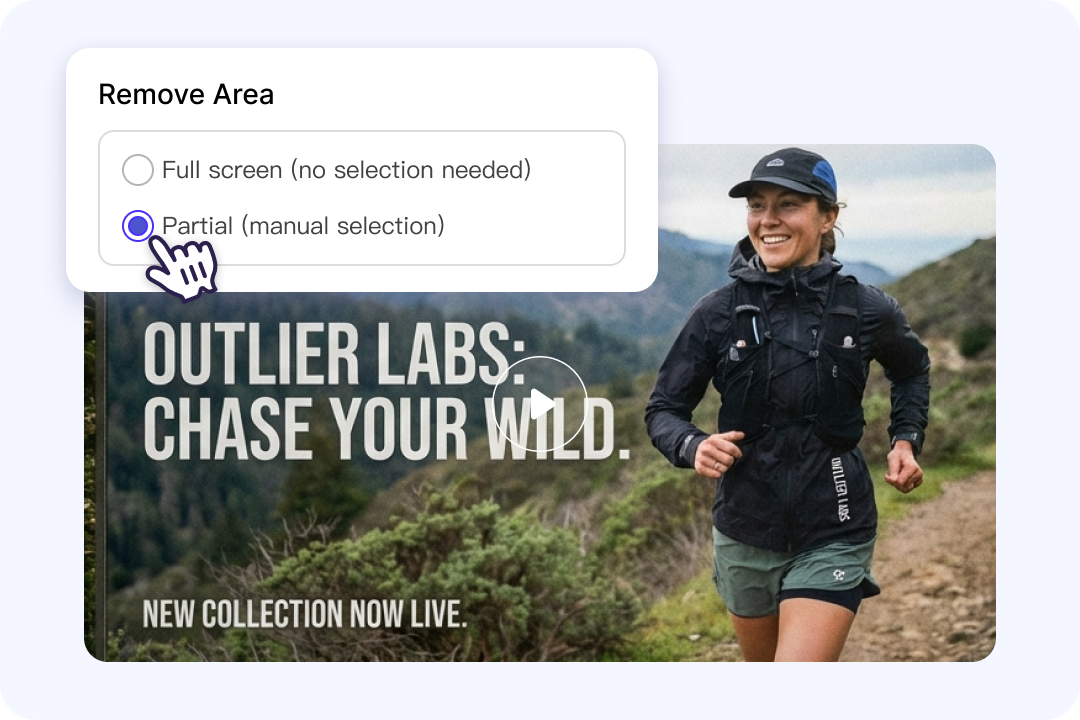
Adaptive Removal Controls
Different projects require different cleanup approaches, so our AI removal tool offers both full‑screen detection and manual selection. Full‑screen mode works well when overlays appear consistently throughout the video. Manual mode lets you target specific regions, such as timestamps, corner logos or mid‑frame text. You can adjust the selection precisely without disturbing the rest of the scene. You decide exactly which parts of the frame should be cleared.

Preserve Layout, Motion, and Transitions
Maintaining the original structure of your video is essential, and FalcoCut keeps pacing and visual flow stable after cleanup. Subtitles or text disappear without shifting frames or breaking the rhythm you worked hard to create. Your motion paths and visual order stay aligned, even when you remove large elements from the scene. Everything holds together so the final edit feels seamless. When you're editing product demos, UI walkthroughs, or timing-sensitive clips, you get a final cut that stays true to your original layout.

Restores Background After Erase
Clean backgrounds matter, and FalcoCut rebuilds erased areas so they blend in seamlessly. Subtitles, watermarks, and on‑screen text disappear without leaving behind smudges or distracting marks. The AI restores natural texture, lighting, and movement so every cleaned section matches the rest of the frame. Even large text blocks or corner logos are removed without hurting the look of your video. With a background that feels untouched, you can reuse or republish your video confidently—viewers stay focused on your story, not the edit.
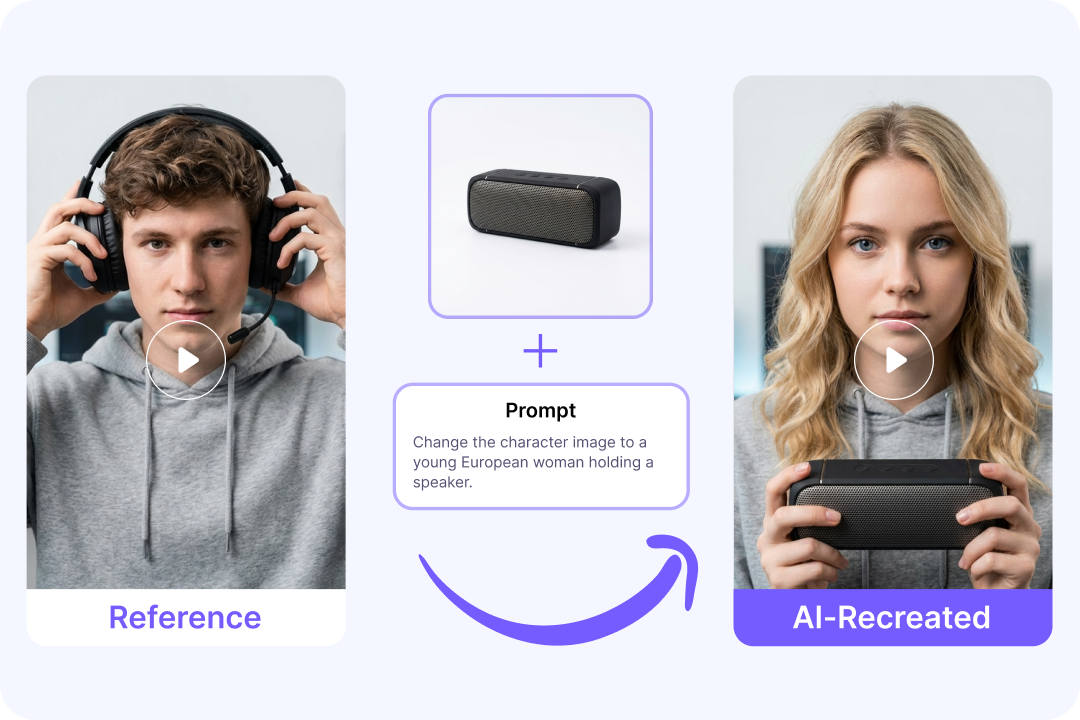
Integrated Editing and Cleanup Flow
FalcoCut brings your video work into one connected space, so you don't have to jump between different tools to get things done. You can upload clips, clean them, make edits, preview changes, and download the final version all in the same platform. Keeping everything together helps you stay organized and saves time you'd normally spend switching apps. Your videos also stay consistent in style and quality because every step happens in one place. It's a smooth setup for creators, educators, and teams who manage many clips and want a simpler, more unified workflow.
Why Choose Our AI Subtitle Removal
FalcoCut gives you reliable AI subtitle cleanup that saves time, protects your content, and makes editing simple and secure. It's built to handle every project with consistency, so you can trust the results every time.
Fast Processing
Videos are processed in minutes, allowing you to clean clips without slowing down your schedule. The optimized AI keeps up with tight deadlines and multi‑project workloads.
Simple Editing for Everyone
The interface is simple and intuitive, allowing anyone to clean up subtitles without a steep learning curve. Editors of all levels can produce polished videos in just a few steps.
AI‑Powered Accuracy
The AI handles subtitles, watermarks, and text with precision while preserving transitions, effects, and motion. You get pro‑level control without the complexity or extra plugins.
Secure Handling
Enhanced safeguards protect your files throughout the editing process. Your content stays private and reliably processed with confidence with every project.
Seamless Across Devices
Whether on desktop or mobile, the workflow stays smooth and consistent for quick subtitle cleanup. Your clips remain distraction‑free and ready to publish across platforms.
Cost‑Effective Results
Automated cleanup reduces the need for reshoots or manual editing, cutting both production time and labor costs. Use footage again without investing in extra tools or revisions.
Old Way vs. FalcoCut AI Removal
Manual subtitle cleanup is slow and costly, often requiring hours of manual effort. FalcoCut AI Video Subtitle Remover transforms the process, delivering fast, accurate, and scalable results that save time and keep videos professional.
Old Way
- •Takes 3–10 hours or even days per video
- •Needs paid editors or design teams
- •Requires fixing layouts by hand
- •Quality changes from project to project
- •Limited help for different languages
New Way with FalcoCut
- •Cleans subtitles, logos, watermarks and text in minutes
- •Keeps layouts and visuals accurate
- •Delivers stable quality across different footage types
- •Processes long or multiple videos efficiently
- •Scales easily for teams and global projects
What Our Customers Say
Excellent Tool for Social Campaigns
With FalcoCut, I no longer spend hours re-recording intros or corrections. The cloned voice sounds just like me, and my audience can't tell the difference. It saves me time and keeps my podcast consistent.
Social Media Marketer
Marcus Lee
Helped a Lot on My Online Courses
My students expect clear, distraction‑free lessons. FalcoCut helps me update course videos with fresh translations and accurate visuals, so learning stays smooth across regions.
Online Educator
Priya Sharma
Perfect for Marketing Teams
We often repurpose old footage for new campaigns. FalcoCut lets us refresh assets without losing quality, making localization and compliance much easier.
Marketing Director
Daniel Chen
Speed up My Freelance Projects
Clients want polished videos on tight deadlines. FalcoCut's speed and accuracy mean I can deliver professional edits without spending hours fixing frames manually.
Freelance Video Editor
Sofia Martinez
Very Simple to Use
I'm not a professional editor, but FalcoCut makes my personal projects look clean and shareable. It's easy to use and gives me results that feel professional.
Student
Alex Johnson
Makes Internal Training Smooth
As an HR Manager supporting multilingual teams, I need training videos that stay clear and easy for everyone to follow. FalcoCut lets me update materials quickly, keeping subtitles accurate and visuals consistent for all employees.
YouTube Creator
Diego Morales
Explore Our AI Tools



Frequently Asked Questions
What is an AI video subtitle remover?
How to remove subtitles from a video?
Step 1: Upload Your Video File
Open FalcoCut in your browser and import the video you want to clean up.
Step 2: Select the Subtitle Area
Use the selection box to cover the subtitles you want removed. FalcoCut's AI will detect the text region automatically, and you can fine-tune the marked area before running the cleanup.
Step 3: Review the AI Cleanup
Hit Start and let the system reconstruct the background where the subtitles were. Check the preview to confirm the text has been fully cleared and the frame looks natural.
Step 4: Download the Finished Video
When you're satisfied with the result, export the polished video in high quality. Your subtitle-free clip is ready for posting, editing, or reuse.
What types of text can FalcoCut AI Removal erase?
Is subtitle removal accurate across different languages?
What video formats can I upload?
Is there a file size limit?
Can FalcoCut handle longer videos or series?
Can I use the AI Removal without installing software?
How fast does FalcoCut process videos?
Can FalcoCut's AI Removal also generate or translate subtitles?
How to remove watermarks from a video?
Step 1: Import Your Video
Open FalcoCut and load your video, then scrub through the timeline to locate every spot where the watermark appears. This helps you plan the cleanup more accurately.
Step 2: Create a Mask Over the Watermark
Use the masking tool to draw a shape over the watermark. Adjust the mask's size so the edges blend naturally with the surrounding frame.
Step 3: Let the AI Clean the Frame
Start the AI repair process. FalcoCut analyzes the masked region and rebuilds the background using nearby pixels. Review the frame-by-frame preview to ensure the fix stays consistent.
Step 4: Save Your Clean Video
Once the result looks right, export the processed clip. Your watermark-free video is ready for publishing or further editing.
How to remove logos from your video?
Step 1: Upload the Clip With the Logo
Launch FalcoCut and upload the video that contains the logo you want to remove.
Step 2: Select the Logo Area
Use the removal tool to draw a box around the logo. Adjust the boundaries so the entire graphic is included, ensuring the cleanup blends seamlessly.
Step 3: Run the Logo Removal
Click Start and let FalcoCut's AI fill in the background where the logo used to be. Play through the clip to confirm the removal stays consistent, especially during motion or scene changes.
Step 4: Export the Final Version
If everything looks natural, export the processed video. The logo is gone, and your clip is ready for reuse, repurposing, or distribution.
Clean up Your Video with Instant AI Removal
Get clean, distraction-free videos by removing subtitles or unwanted text automatically in minutes. FalcoCut will deliver fast, secure, accurate subtitle removal so you can start right now.