Translate Spanish Video to English Online with AI
Translate Spanish video to English in FalcoCut by uploading your file. FalcoCut auto-translates voice and subtitles, adds lip sync, and lets you choose bilingual or translated-only subtitles with easy style controls.
Drag& Drop, or
See Spanish Clips Shift Into Clear English Versions
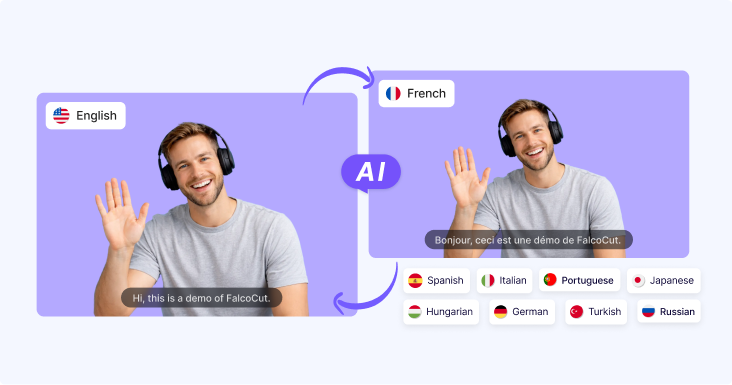
FalcoCut shows a side-by-side preview, so you can watch your Spanish video become an English version in minutes. Keep subtitles and voice clear and easy to follow, even if you are new to video editing.
 English
 Spanish
 Japanese
Turn Spanish Videos Into Clear English Stories Fast
FalcoCut helps you translate a video from Spanish to English without complex tools or editing skills. Get clean subtitles, natural voice, and a polished look that feels ready to post.
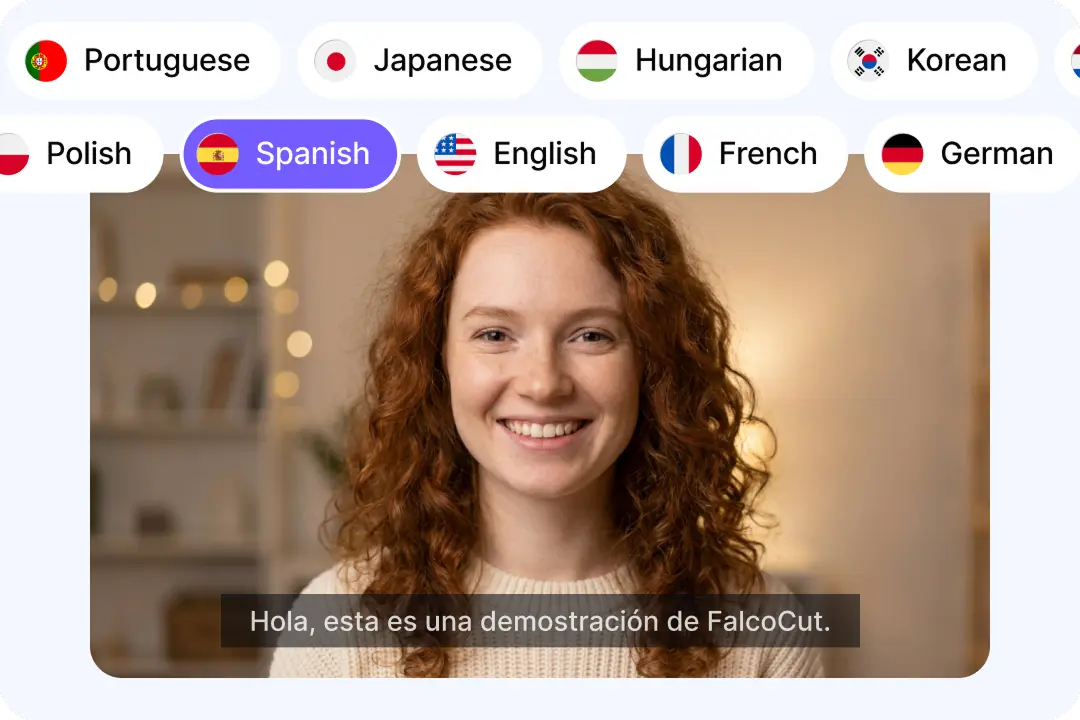
More Languages Ready When Your Channel Grows
Reach more viewers without changing your content plan. FalcoCut supports 35 languages for subtitles, voice, and lip sync. That means you can scale beyond Spanish and English later. You can also create up to two target languages in one run. This saves time when you post to more than one market. Your message stays clear across regions and audiences.
Translate Spanish Video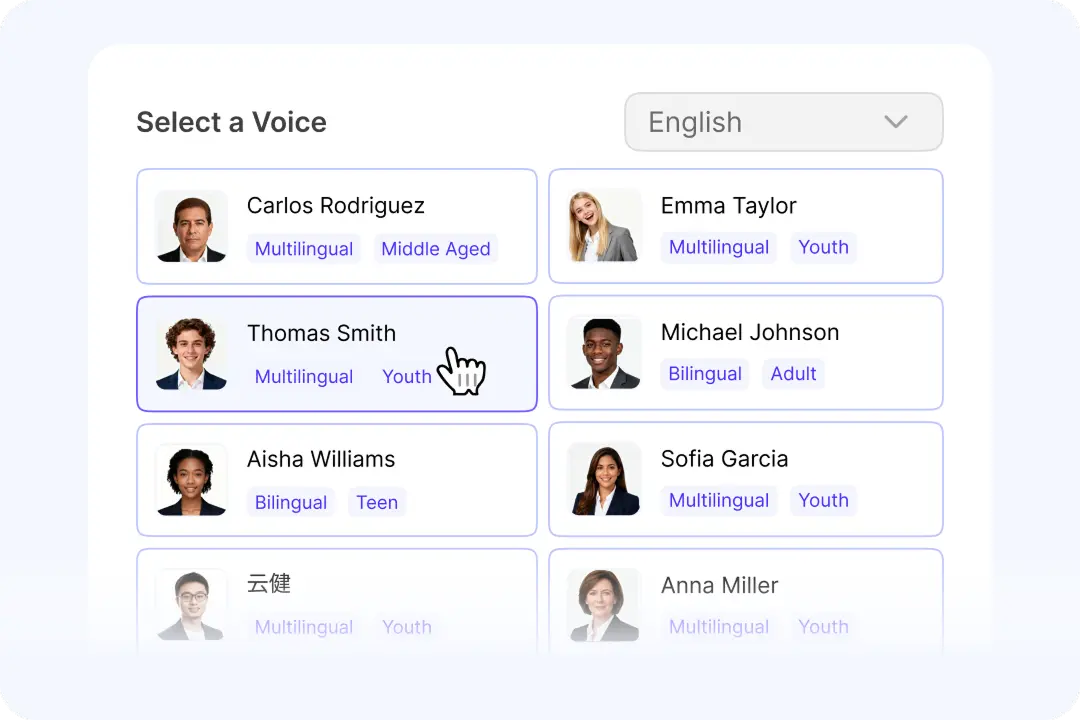
Natural Voices That Sound Like Real People
Bad dubbing can make viewers leave in seconds. FalcoCut offers a wide voice library with realistic tone and pacing. You can match the voice to your video style and audience. This helps your English version feel smooth and easy to trust. Clear speech also improves watch time and understanding. Your content keeps its energy, even after translation.
Translate Spanish Video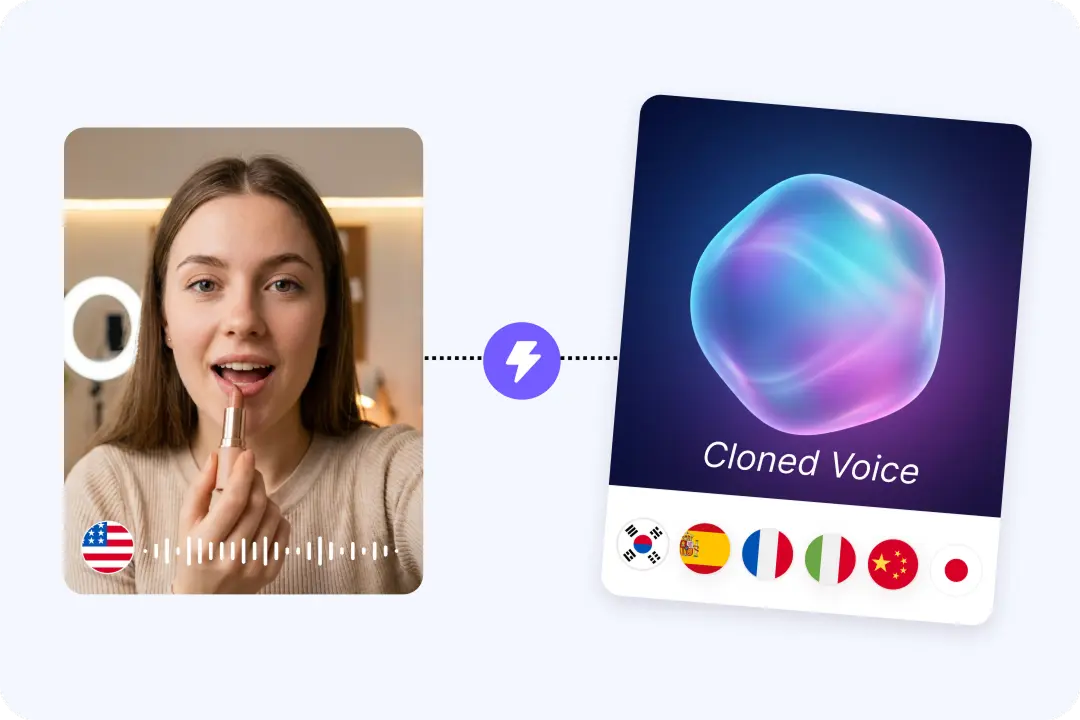
Dubbing Options for a Stronger Brand Sound
Keep a consistent sound across every translated video. FalcoCut supports AI dubbing and AI voice cloning for a familiar feel. This is helpful for creators, teachers, and teams with a known voice. Your English track can stay close to the original delivery. That makes your message feel more personal and less generic. Viewers get a version that still feels like you.
Translate Spanish Video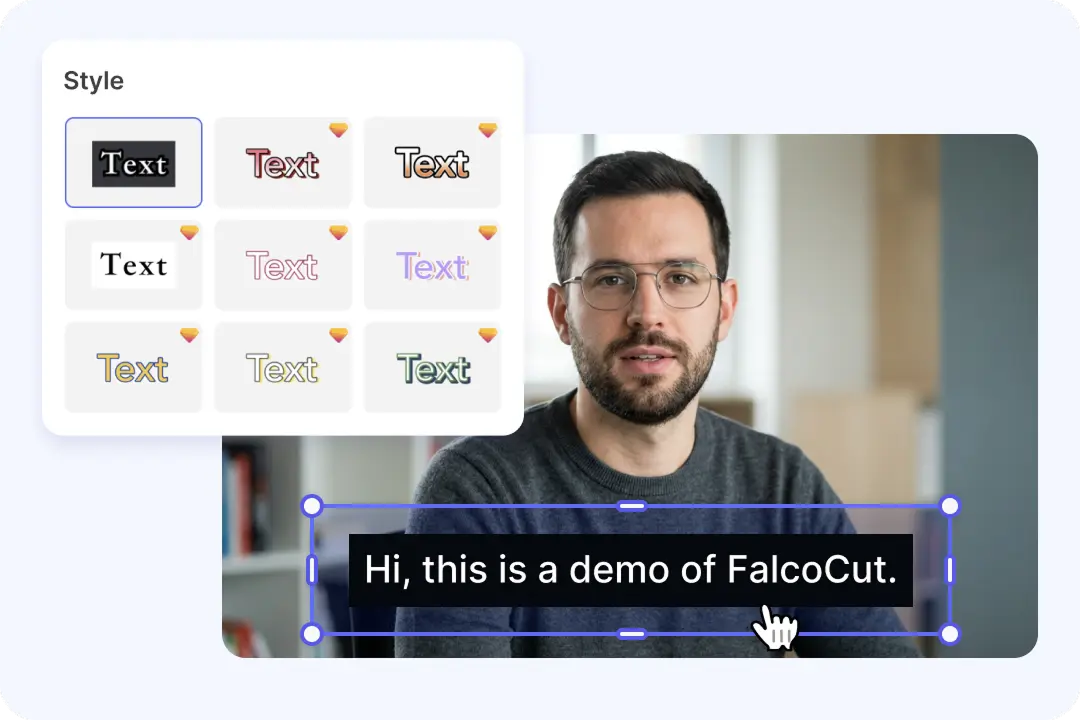
Accurate Subtitles You Can Edit and Style
Subtitles help people watch anywhere, even with sound off. FalcoCut detects speech and can also read on-screen text. It creates Spanish to English subtitles you can refine for names and slang. You can choose bilingual lines or translated-only captions. Style controls let you adjust font, size, color, and placement. The result looks clean on social feeds and longer videos.
Translate Spanish Video
Lip Sync That Keeps Faces Looking Natural
When lips do not match, videos can feel fake and distracting. FalcoCut lip sync aligns mouth movement to the new English voice. This works great for talking-head clips, interviews, and lessons. It helps viewers focus on the message, not the mismatch. The video feels more like a true native version. You get a smoother, more professional final result.
Translate Spanish Video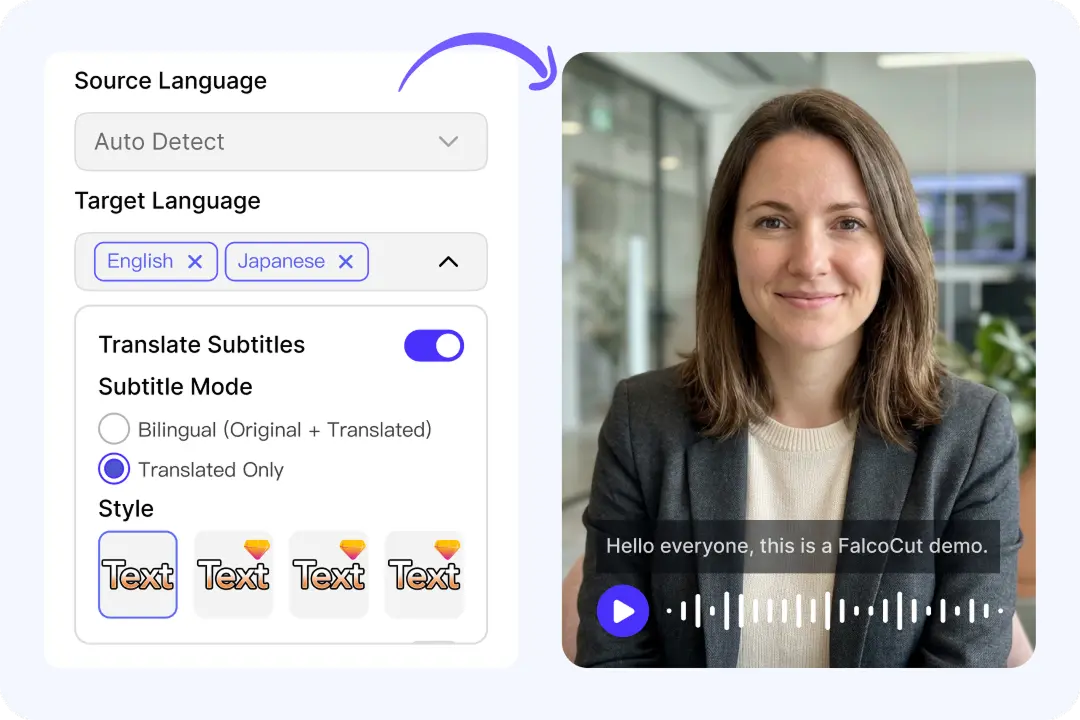
One Simple Workspace for Full Video Localization
You should not need five tools to finish one translated video. FalcoCut brings subtitles, voice, and export into one flow. You can manage versions and download results from My Creations. This keeps your projects organized as you publish more content. You can start in a browser and skip heavy setup. Faster turnaround helps you post more often and grow sooner.
Translate Spanish VideoHow to Translate Spanish Video to English in FalcoCut
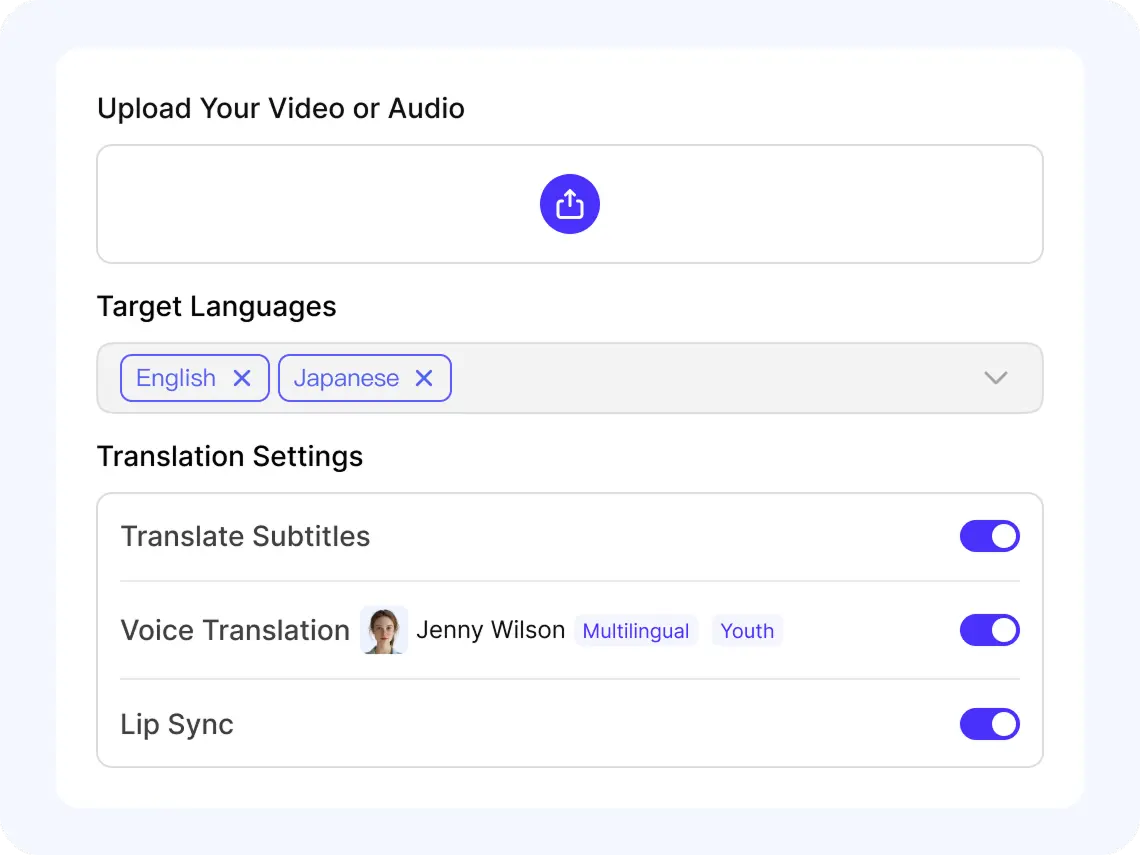
Step 1: Upload Your Clip
Click Add Video to Translate, or choose Select From Library to pick a saved file. Upload an MP4 or MOV, then wait a moment for the preview to load.
Step 2: Choose Source and Target Languages
Set Spanish as the Source Language, then pick English as your Target Language. You can choose up to two targets to create more than one version in one run.
Step 3: Review Subtitles and Voice
Turn on Translate Subtitles to capture speech and on-screen text, then check the preview for timing. If you want dubbing, enable Translate Voice, pick a voice, and add Lip Sync.
Step 4: Export and Share Your Video
Pick Bilingual Subtitles or Translated Only, then adjust font, size, color, and position. When it is ready, open My Creations and download with a watermark or upgrade for no watermark.
Unlock English Reach Across Real-World Video Needs
Unlock 35 Languages for Fast Video Localization
FalcoCut supports 35 languages, so you can turn one video into versions for new viewers in minutes. Upload your file, pick your languages, and export with subtitles and voice in a few clicks.
























Count on FalcoCut for Fast, Accurate Spanish-to-English Results
FalcoCut helps you translate Spanish video to English in minutes, without complex editing steps. It runs in your browser and keeps your workflow simple, steady, and secure from upload to download.
Start in Your Browser, Not a Complex Editor
FalcoCut works right in your browser, so you can begin without installs or setup delays. The layout is clean and easy for first-time users. Upload your MP4 or MOV, preview it, and move on fast. You spend less time learning tools and more time publishing.
Get English Versions Ready in Minutes
When you need Spanish to English video translation, speed matters for trends and deadlines. FalcoCut processes quickly so you can review results sooner. Make a change, re-run, and keep moving without long waits. It is built to save time on every project.
Choose Subtitles, Voice, or Both for Each Clip
FalcoCut lets you translate Spanish video to English subtitles, voice, or both based on your goal. Use subtitles for quiet viewing, or add voice for a full English experience. You can also create up to two target languages in one run. That flexibility helps you fit ads, lessons, and social posts.
Clear Output You Can Trust for Meaning and Tone
Good translation should keep the message clear, not just swap words. FalcoCut is designed to produce readable English that matches the intent of Spanish speech. It also recognizes on-screen text when creating subtitles. You get cleaner results with fewer manual fixes afterward.
Keep Costs Low While Scaling More Videos
If you translate a video from Spanish to English often, costs can add up fast. FalcoCut helps you scale without hiring extra help for every clip. You can download a free version with a watermark to test your workflow. Upgrade only when you need a clean export for publishing.
Handle Your Files in a Safer, More Controlled Flow
Your videos can include private voices, faces, and brand details that need care. FalcoCut keeps the process simple, so you always know what you uploaded and what you will download. You can review the preview before exporting the final file. That control helps you work with more confidence.
Manual Video Translation vs. FalcoCut AI Localization
Manual work takes time, money, and lots of back-and-forth. FalcoCut helps you scale faster with automated subtitles, voice, and export in one place.
Traditional Manual Workflow
- •Slow back-and-forth edits
- •Higher costs per video
- •Hard to keep tone consistent
- •Many tools to manage
- •Long waits for each update
FalcoCut Automation
- •Fast processing from one upload
- •Lower cost for more videos
- •Subtitles and AI voice in one flow
- •Lip sync option for talking videos
- •Supports 30+ languages at once
Explore Our AI Tools
AI Video Translator
AI Video Translator – Instantly translate your videos into 30+ languages with accurate subtitles, natural AI dubbing, and seamless lip sync, making your content accessible to global audiences across social media, e-learning, and marketing.

AI Video Generator
Generate videos from text or images in minutes. Turn scripts, ideas, or visuals into engaging videos with AI-powered scenes, motion, and visuals—no filming or editing required. Perfect for marketing videos, social content, product showcases, and storytelling at scale.

AI Avatar Generator
Create lifelike digital avatars in minutes. Perfect for presentations, marketing, and social media—our AI avatar generator brings your message to life with realistic expressions and gestures.
Frequently Asked Questions
Can I get English subtitles from a Spanish video without dubbing the voice?
Yes, you can translate Spanish to English subtitles without changing the original audio. Enable Translate Subtitles and keep Translate Voice turned off to preserve the Spanish voice. You can also choose bilingual subtitles or translated-only subtitles and adjust font, size, color, and position.
Does FalcoCut support Spanish to English voice dubbing and lip sync?
Yes, Spanish and English are fully supported for voice translation, AI dubbing, and lip sync. Turn on Translate Voice to generate an English voice track, then enable Lip Sync for a more natural on-camera result. You can pick a voice style that fits the speaker's tone and age for better realism.
Can I translate a video from Spanish to English free?
You can process a translation and download a version with a watermark for free. If you need a clean export, you can upgrade to download without a watermark. This lets you test subtitle translation, voice dubbing, and styling before paying for final delivery.
How long does Spanish to English video translation take?
Processing time depends on video length and which options you enable, such as subtitles, voice, and lip sync. Short clips can finish quickly, while longer videos may take more time to generate and sync. Because FalcoCut runs in your browser, you can start a job and come back when it's ready.
What video formats can I upload for Spanish to English translation?
FalcoCut supports MP4 and MOV uploads for translation. After you upload, a preview appears automatically so you can confirm the content before processing. This keeps the workflow simple for beginners who just want to translate a Spanish video to English fast.
Can I create two English versions at once, like subtitles plus another language?
Yes, you can choose up to two target languages in one run. For example, you can generate an English version and a second language version from the same Spanish source video. This is helpful when you publish to multiple channels and want consistent timing and formatting across outputs.
How accurate is the Spanish to English translation for subtitles and dubbing?
FalcoCut uses AI to detect speech and generate Spanish to English subtitles and voice translation. Results are usually strong for clear audio, but accents, background noise, or fast speech can affect accuracy. You can improve quality by choosing the right voice style and using subtitle display options that match your audience.
Can I change how the English subtitles look on the final video?
Yes, you can control subtitle display and styling before you export. Choose bilingual subtitles to show Spanish and English together, or pick translated-only subtitles for a clean English view. You can also adjust font, size, color, position, and background to match your brand or platform.
Is my Spanish video safe when I upload it for English translation?
FalcoCut is built to handle your videos and data securely during upload and processing. You stay in control of what you upload and what you download, and you can remove files from your workflow by managing your creations. This helps you translate Spanish videos to English with confidence, even for client or business content.